Ever had your computer act up after a bad update or mysterious error? Don’t panic—system restore might be your digital lifeline. This powerful Windows feature lets you roll back your PC to a previous, stable state, undoing system changes without touching your personal files. Let’s dive into how it works, when to use it, and how to master it like a pro.





What Is System Restore and How Does It Work?

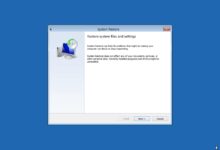
System restore is a built-in recovery tool in Microsoft Windows that allows users to revert their computer’s system files, settings, and installed programs to a previous point in time. It’s designed to help fix problems caused by software conflicts, faulty updates, or unwanted changes—without affecting personal data like documents, photos, or emails.
Understanding the Concept of Restore Points
At the heart of system restore are restore points—snapshots of your system’s configuration at a specific moment. These include registry settings, system files, and program installations. Windows automatically creates restore points before major system events, such as installing new software or applying updates.
- Restore points are created automatically by Windows Update.
- Users can manually create restore points before making system changes.
- Each restore point captures system state, not personal files.
How System Restore Differs From Backup and Recovery
It’s crucial to understand that system restore is not a full backup solution. While backup tools like File History or third-party software copy your entire data set, system restore focuses only on system-level changes.
- System restore does not protect against hardware failure or data loss.
- Backups save all files; system restore only rolls back system settings.
- For complete protection, combine system restore with regular backups.
“System restore is like a time machine for your operating system—it won’t save your novel, but it can fix what’s breaking your PC.”
When Should You Use System Restore?
Knowing when to trigger a system restore can save you hours of troubleshooting. It’s not meant for everyday use but is invaluable during system instability.
After a Failed Windows Update
One of the most common triggers for system restore is a problematic Windows update. Sometimes, updates introduce bugs or compatibility issues that prevent your system from booting or functioning properly.
- If your PC fails to start after an update, system restore can revert the changes.
- Use Safe Mode with Command Prompt if Windows won’t boot normally.
- Microsoft’s official guide recommends system restore in post-update failure scenarios (Microsoft Support).
Following Malware or Virus Infections
Some malware modifies system settings or registry entries to persist on your machine. Even after removing the virus with antivirus software, your system might remain unstable.
- System restore can roll back registry and system file changes made by malware.
- However, be cautious—older restore points might contain the malware itself.
- Always run a full antivirus scan before and after using system restore.
After Installing Problematic Software
Not all software plays nicely with Windows. Some programs install drivers or modify system settings that conflict with existing components.
- If your PC slows down or crashes after installing new software, system restore can undo the installation.
- It’s wise to create a manual restore point before installing unfamiliar programs.
- This is especially useful for developers or power users testing beta software.
How to Enable and Configure System Restore
System restore isn’t always enabled by default, especially on new installations or after a clean Windows setup. You must activate it manually for each drive you want to protect.
Enabling System Restore on Windows 10 and 11
To turn on system restore, follow these steps:
- Right-click on ‘This PC’ and select ‘Properties’.
- Click ‘System Protection’ on the left sidebar.
- Select your system drive (usually C:) and click ‘Configure’.
- Choose ‘Turn on system protection’ and adjust the disk space usage (recommended: 5-10%).
- Click ‘Apply’ and ‘OK’.
This process activates the Volume Shadow Copy service, which manages restore points. For more details, refer to Microsoft’s documentation.
Setting Disk Space and Restore Point Frequency
System restore uses disk space to store snapshots. By default, it’s limited to a percentage of your drive’s capacity.
- Adjust the slider in ‘Configure’ to allocate more or less space.
- More space allows more restore points and longer retention.
- Windows automatically deletes older restore points when space runs out.
While you can’t directly set how often restore points are created, Windows typically generates them:
- Daily, if no other events trigger one.
- Before major updates or installations.
- Manually, when you create one yourself.
Creating Manual Restore Points
Proactive users should create manual restore points before making system changes.
- Go to ‘System Protection’ > ‘Create’.
- Enter a descriptive name (e.g., ‘Before Installing Adobe Suite’).
- Click ‘Create’ and wait for confirmation.
This ensures you have a clean rollback option if something goes wrong. It’s a best practice recommended by IT professionals and tech forums like TechRadar.
Step-by-Step Guide to Performing a System Restore
When your system is acting up, performing a system restore can be a lifesaver. Here’s how to do it correctly.
Using System Restore from Within Windows
If your PC is still booting, you can initiate system restore through the Control Panel:
- Open Control Panel > Recovery > Open System Restore.
- Click ‘Next’ and choose a restore point from the calendar.
- Select a point when your system was stable.
- Review the changes that will be undone and confirm.
The process may take 10-30 minutes. Your PC will restart several times.
Using System Restore from Safe Mode
If Windows won’t start normally, boot into Safe Mode:
- Restart your PC and press F8 (or Shift + Restart).
- Select ‘Troubleshoot’ > ‘Advanced Options’ > ‘System Restore’.
- Follow the same steps as above.
Safe Mode loads only essential drivers, increasing the chance of a successful restore.
Using System Restore from Windows Recovery Environment (WinRE)
If the OS won’t boot at all, use WinRE:
- Boot from a Windows installation USB or DVD.
- Choose ‘Repair your computer’ instead of installing.
- Navigate to ‘Troubleshoot’ > ‘Advanced Options’ > ‘System Restore’.
- Select a restore point and proceed.
This method is essential when system files are too corrupted to boot. Detailed instructions are available at How-To Geek.
Common Issues and Troubleshooting Tips
Even a powerful tool like system restore can run into problems. Here are common issues and how to fix them.
System Restore Not Working or Stuck
Sometimes, system restore fails to complete or gets stuck at a certain percentage.
- Ensure you’re running it in Safe Mode to minimize interference.
- Disable third-party antivirus software temporarily.
- Run ‘sfc /scannow’ in Command Prompt to repair system files first.
If the issue persists, the Volume Shadow Copy service might be corrupted. Restart the service via Services.msc or use DISM to repair the image.
No Restore Points Available
If you see ‘No restore points were found,’ system restore may not have been enabled.
- Check if system protection was turned on before the issue occurred.
- If not, no snapshots exist to roll back to.
- Consider using File History or a backup to recover data.
This is why enabling system restore early is critical. Don’t wait until disaster strikes.
System Restore Fails to Boot After Completion
In rare cases, the restore process completes but Windows won’t start.
- Try booting into Safe Mode and running the restore again.
- Use Startup Repair from WinRE.
- If all else fails, a clean Windows reinstall may be necessary.
Always back up your data before attempting system restore, just in case.
Advanced Tips and Best Practices
For power users, system restore can be optimized and integrated into broader system management strategies.
Scheduling Regular Restore Points with Scripts
You can automate restore point creation using PowerShell or batch scripts.
- Use the command:
Checkpoint-Computer -Description "Daily Backup" -RestorePointType "MODIFY_SETTINGS" - Schedule it via Task Scheduler to run weekly or before updates.
- This ensures consistent rollback options without manual effort.
This is especially useful for IT administrators managing multiple machines.
Monitoring Restore Point Health and Integrity
Over time, restore points can become corrupted or fragmented.
- Use ‘vssadmin list shadows’ in Command Prompt to view existing snapshots.
- Check disk health with ‘chkdsk’ to ensure the storage isn’t failing.
- Monitor system logs in Event Viewer for VSS errors.
Healthy restore points mean reliable recovery when you need it most.
Combining System Restore with Other Recovery Tools
System restore is most effective when part of a layered defense.
- Pair it with File History for personal file protection.
- Use third-party imaging tools like Macrium Reflect for full disk backups.
- Enable BitLocker for encryption and added security.
No single tool is perfect—layered protection is the key to resilience.
Alternatives to System Restore
If system restore isn’t available or sufficient, several alternatives can help recover your system.
Using Windows Reset This PC
This feature reinstalls Windows while optionally keeping your files.
- Access it via Settings > Update & Security > Recovery.
- Choose ‘Keep my files’ or ‘Remove everything’.
- It’s more thorough than system restore but takes longer.
Unlike system restore, it doesn’t rely on restore points, making it useful when none exist.
Third-Party System Recovery Software
Tools like Acronis True Image, EaseUS Todo Backup, or Macrium Reflect offer advanced recovery options.
- Create full disk images that can be restored to any hardware.
- Offer scheduling, compression, and cloud storage.
- Often more reliable than built-in tools.
These are ideal for users who need enterprise-grade recovery without enterprise cost.
Using Command Line Tools: SFC and DISM
For targeted repairs, use built-in command-line utilities.
- Run ‘sfc /scannow’ to scan and repair corrupted system files.
- Use ‘DISM /Online /Cleanup-Image /RestoreHealth’ to fix the Windows image.
- These tools can resolve issues without needing a full restore.
They’re often the first step in professional troubleshooting workflows.
What is system restore and when should I use it?
System restore is a Windows feature that reverts system files and settings to a previous state. Use it when facing issues after updates, software installations, or malware infections—especially if your PC won’t boot properly.
Does system restore delete my personal files?
No, system restore does not delete personal files like documents, photos, or emails. It only affects system files, registry settings, and installed programs. However, always back up important data before performing any system operation.
Why can’t I find any restore points?
If no restore points are available, system protection may have been disabled. Check if it was turned on before the issue occurred. If not, no snapshots were created. You can enable it now for future protection.
Can system restore remove viruses?
System restore can undo system changes made by malware, but it’s not a guaranteed antivirus solution. Some viruses can infect restore points. Always run a full antivirus scan before and after using system restore.
How do I know if system restore worked?
After completion, Windows will display a success message. You can verify by checking the system’s stability, reviewing installed programs, or confirming the date and time of the restore point in the system restore interface.
System restore is a powerful, built-in tool that can rescue your PC from instability caused by updates, software, or malware. By understanding how it works, when to use it, and how to troubleshoot common issues, you can maintain a healthier, more resilient system. Remember to enable it early, create manual restore points, and combine it with regular backups for complete protection. Whether you’re a casual user or a tech enthusiast, mastering system restore gives you control over your digital environment. Don’t wait for disaster—prepare now.
Recommended for you 👇
Further Reading: